
Use the terminal UI
The bacnet command has a full-screen terminal UI (TUI). It discovers devices, browses their objects, watches values, and shows the B/IP, BACnet/SC and MS/TP diagnostics the one-shot commands can’t. It is read-only until you arm a write session.
These pages describe v0.15.0. The TUI is built by default and plain bacnet on a terminal opens it. It replaced the old interactive shell a release ago, and that release’s upgrade guide lists what the change meant for scripts; this release’s lists what has changed since. The screenshots come from a loopback lab, not a real site.
Install it
Section titled “Install it”Every release executable includes the TUI, and the Linux ones also join MS/TP trunks; install a CLI executable covers the download and its checksum. To build it with Cargo instead, add sc-tls for BACnet/SC and serial for MS/TP:
cargo install bacnet-cli --version 0.15.0 --locked --features sc-tls,serialFrom a checkout, cargo install --path crates/bacnet-cli --locked --features sc-tls,serial does the same. The executable is bacnet. A build with --no-default-features leaves the TUI out: bacnet tui then says how to rebuild, and plain bacnet prints the usage.
Open it
Section titled “Open it”On a terminal, either of these opens the TUI:
bacnetbacnet tuiWith no saved profiles it opens the profile editor; with one it previews it; with several it lists them. Network flags work too, before or after tui: bacnet -i 10.0.1.5 tui binds that interface, and bacnet --foreign-bbmd 10.0.1.1 tui registers with a BBMD. Profiles and safety covers both ways in.
Plain bacnet opens the TUI only when stdin and stdout are both terminals and TERM isn’t dumb. In a pipe or a script, with --no-tui, or with the BACNET_NO_TUI environment variable set to anything but empty or 0, it prints the usage and exits with status 2. The one-shot commands (discover, read, write and the rest) are unchanged, and they read better with a screen reader than the TUI does.
Read the layout
Section titled “Read the layout”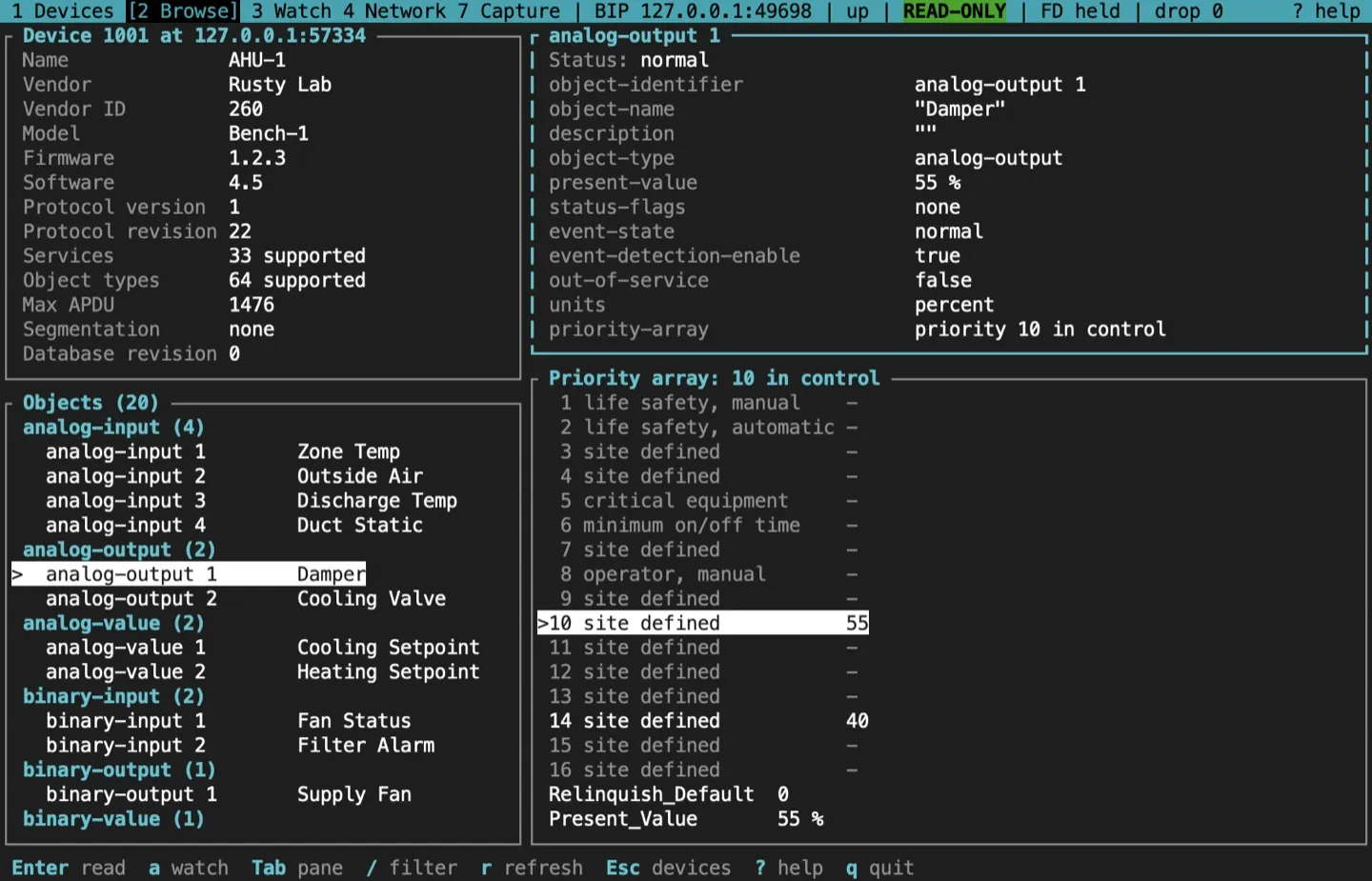
Every screen has the same three parts:
- The status bar, on the top line: the screen strip, the transport and local address, the link state, the session level, the footprint, and
? helpon the right. For example,bacnet | 1 Devices 2 Browse [3 Watch] 4 Network 7 Capture | BIP 127.0.0.1:50263 | up | READ-ONLY | COV 0 | FD held | drop 0.- The strip numbers the screens that apply to the session, with the one shown in brackets. In a narrow terminal only the one shown keeps its name:
1 2 [3 Watch] 4 7. - The level is
READ-ONLY,PASSIVE, or a redWRITE mm:sswhile a write session is armed. COV nandFDare the state this session holds on other devices: COV subscriptions, and this session’s entry in a BBMD’s foreign-device table.FDshows only with a registration, and says where it stands:held,pending,refused,no answerorlapsed, as the Network screen’s banner does.ledger nappears once a write is still in effect.drop ncounts events the UI couldn’t keep up with.- On BACnet/SC it also names the hub in use, such as
hub primary. - Before a profile connects it reads
no profile. In a narrow terminal the least useful fields go first; the link state, the level and? helpalways stay.
- The strip numbers the screens that apply to the session, with the one shown in brackets. In a narrow terminal only the one shown keeps its name:
- The screen in the middle.
- The footer, on the bottom line: the keys that work right now. In a narrow terminal the less used keys go first;
? helpandq quitalways stay. A message, such as a refusal or an error, sits at the left beside the keys for a few seconds, and goes as soon as you change screens or open a dialog. From 160 columns the keys give way so a long message shows in full, all but? help,q quitand the recovery key of a failed connection. A failed connection shows its cause there with the keys that recover (p settings,c retry); the device screen and the log pane have the whole error.
Number keys switch screens. The strip shows Network once a session is connected (its Networks tab works on every transport), BACnet/SC only for SC and MS/TP only with a serial port, but every key works on every session:
| Key | Screen | What it shows |
|---|---|---|
1 |
Devices | The device table; an open browser stays as it was |
2 |
Browse | The browser of the device you opened with Enter, back where you left it; with none open, 2 stays on the devices and says so |
3 |
Watch | Watched points, by COV or polling |
4 |
Network | Foreign-device registration, BDT, FDT, the BDT matrix, and routers |
5 |
BACnet/SC | The hub connector, certificates and the connection doctor |
6 |
MS/TP | This station’s token state, or the receive-only monitor |
7 |
Capture | Frames from the session, the MS/TP monitor or libpcap, decoded, with pcap export |
Esc goes back a step: out of a dialog, out of the browser, or from a screen to the devices.
The command bar, help and the log
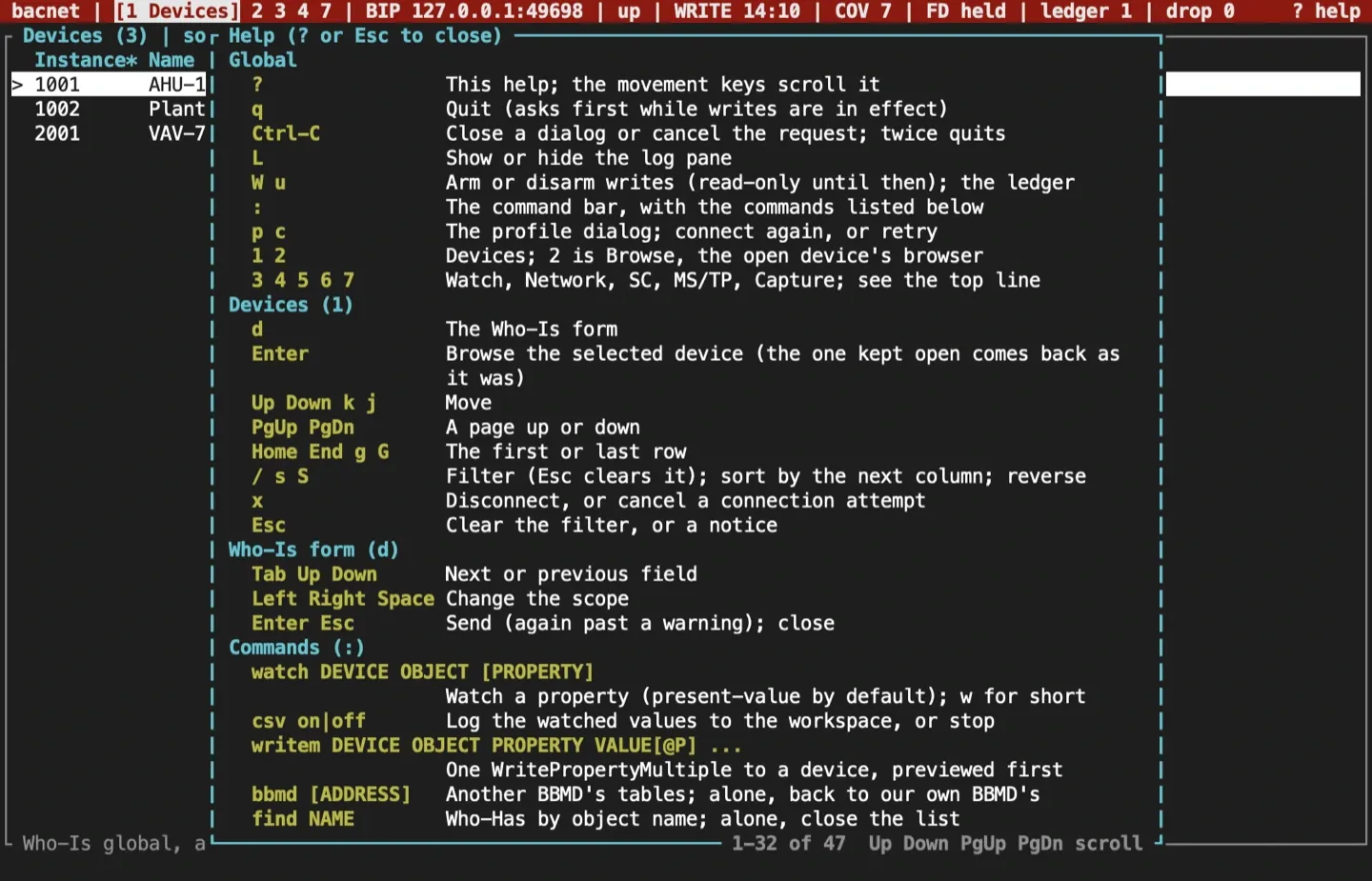
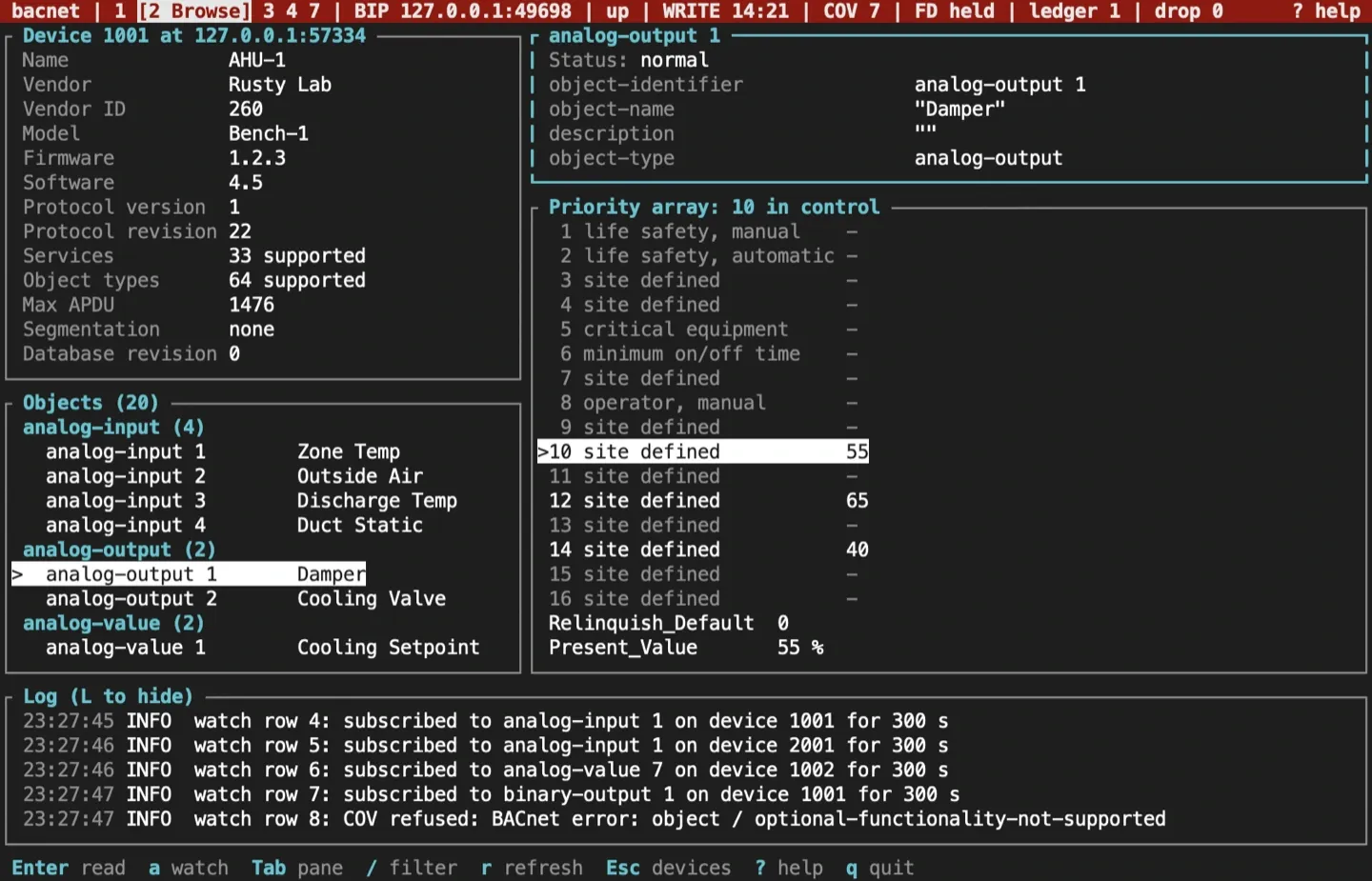
Section titled “The command bar, help and the log”:opens the command bar on the footer line. It runswatch,csv,writem,bbmd,find,mstp,dccandreinitcommands, and shows the syntax of the ones that match what you type. Enter runs the line; Esc closes it. The key reference lists every command.?opens the help overlay: the keys that work everywhere, then the current screen’s keys, then the command bar’s commands. The movement keys scroll it when it doesn’t fit;?or Esc closes it.Lshows or hides the log pane. It holds the latest log lines: connects, Who-Is requests, subscriptions and errors.--log-file FILEalso appends them to a file, and-vor-vvraises the level to debug or trace.
Press q. If a write you made is still in effect, the exit guard asks first: r reverts everything and quits, k keeps the changes, notes that in the audit log and quits, and Esc stays. Ctrl-C closes a dialog or cancels what is running; a second Ctrl-C within 2 seconds quits.
q types a q in text fields (the filter, the Who-Is form, the editors), so it doesn’t quit from there. The exit status is 0 after q or a second Ctrl-C, and 1 when the terminal or the TUI fails. A signal restores the terminal first, then exits with 128 plus the signal number.
Sources and release scope
Section titled “Sources and release scope”These pages describe v0.15.0. The screenshots show a loopback lab: a BBMD, a router, three devices and an SC hub on 127.0.0.1. Source review is not a claim of hardware qualification.
Terminal UI reference · TUI design notes · TUI epic.
CONTINUEProfiles and safetySave a connection, attest to first use, and see what read-only means.Release v0.15.0 ·Build and integrate. Pre-1.0 APIs; partial conformance.Support & limitations