
Browse a device
Enter on a row of the device table opens the browser. It reads the device and lists its objects; nothing is written.
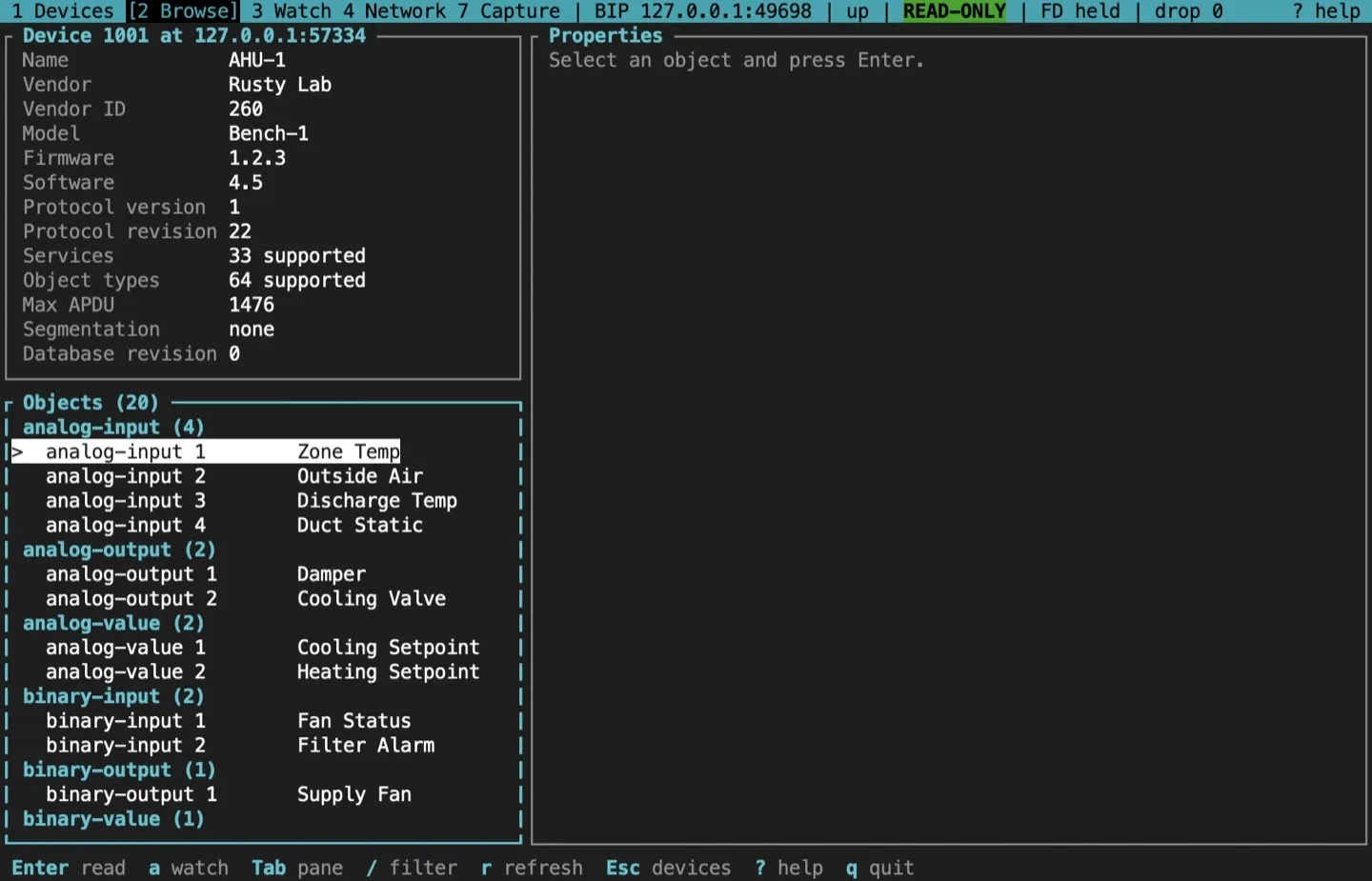
Three panes
Section titled “Three panes”- The device card, top left: name, vendor and vendor ID, model, firmware and application software versions, protocol version and revision, how many services and object types it supports, Max APDU, segmentation and Database_Revision.
- The object list, bottom left: the device’s Object_List, grouped by object type with a count per type, and each object’s name after its label. Names are read only for the objects on screen, never for the whole list, and kept for the session: scrolling reads the names of the rows that come into view,
…marks a name still being read,-one the device refused, and a dim?one that timed out, which is asked for again when the device next sends an I-Am.ron the card or the list reads the device again, and asks again for the names it refused. - The properties, on the right: the selected object’s properties, once you read it.
From 120 columns wide the panes sit side by side. Below that only the focused pane is shown, with a bar naming the panes, and Tab moves to the next one. The focused pane has a coloured border. Tab and Shift-Tab change the focus at any width.
Read an object
Section titled “Read an object”Move to an object in the list and press Enter. The browser reads it and fills the property pane. r reads it again; Esc goes back to the device table.
Each object is read with one ReadPropertyMultiple. If the device refuses that, the browser falls back to one ReadProperty per property. An Object_List too big for one reply is read an element at a time. The browser keeps at most one request outstanding per device, and --max-rate N caps the requests a second across all devices (default 20; 0 for no cap). A property the device won’t return shows its error in place, in kebab case like the property names: the code alone when it is the property’s or the object’s own error, such as (read-access-denied) or (unknown-property), class / code for any other class, such as (resources / no-space-to-write-property), and the reason of a reject or abort, such as (rejected: unrecognized-service).
Status flags and badges
Section titled “Status flags and badges”The first line of the property pane sums up the object’s Status_Flags in text, so the state doesn’t depend on colour:
| Badge | Meaning |
|---|---|
[ALM] |
In alarm |
[FLT] |
Fault |
[OVR] |
Overridden |
[OOS] |
Out of service |
normal |
None of them |
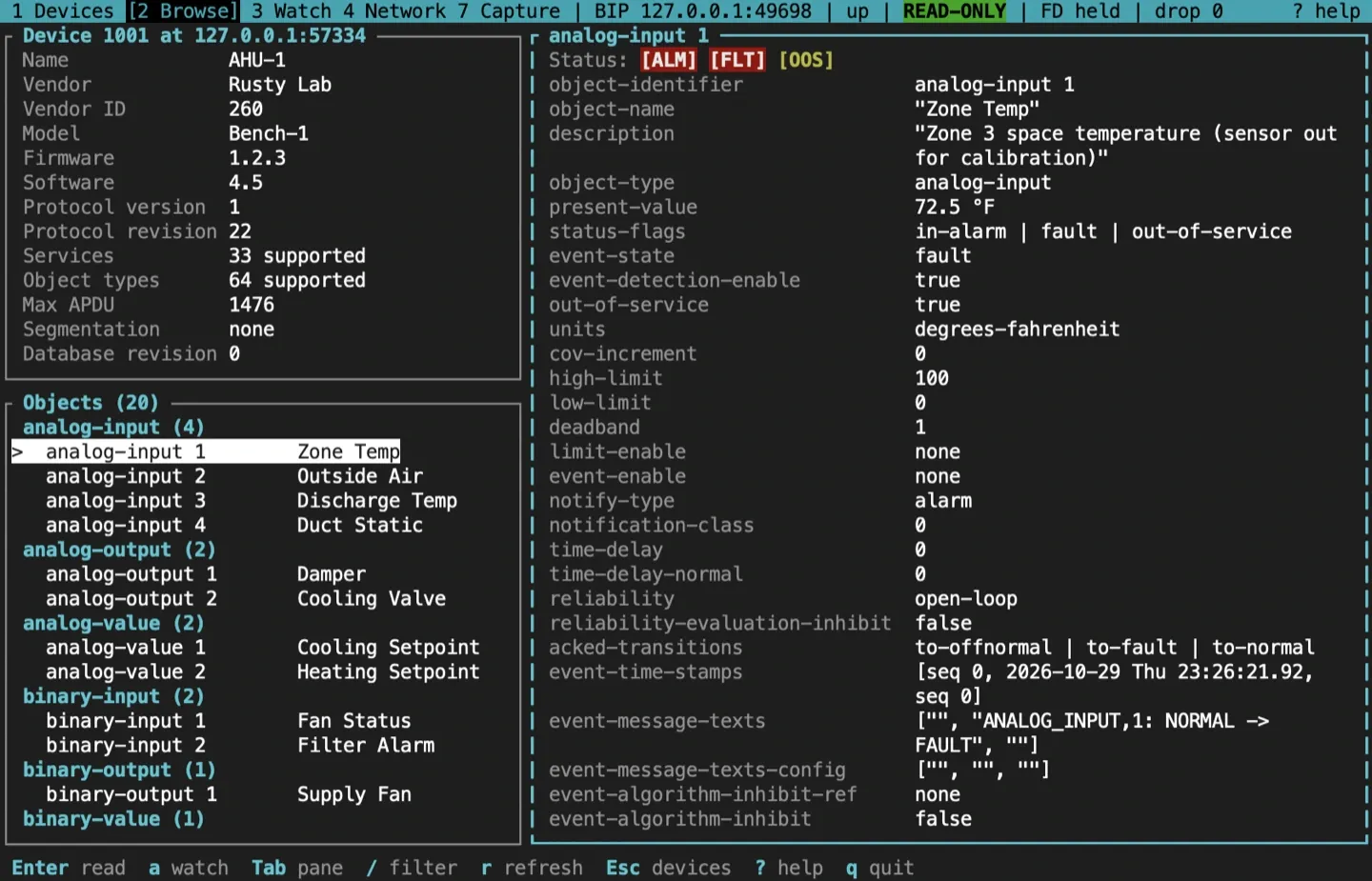
Here the analog input is out of service with a reliability of OPEN_LOOP, so its Present_Value is not coming from the sensor. Read Reliability and Event_State next to the badges before trusting a value.
Priority arrays
Section titled “Priority arrays”A commandable object, such as an analog output, binary output or multi-state output, also shows its 16 command priorities, Relinquish_Default and Present_Value. The slot in control is marked with >, and the title names it. Below 120 columns the priority array is a pane of its own, after Properties in the Tab order, so the properties keep the whole width; from 120 columns it sits under the properties, and from 160 beside them.
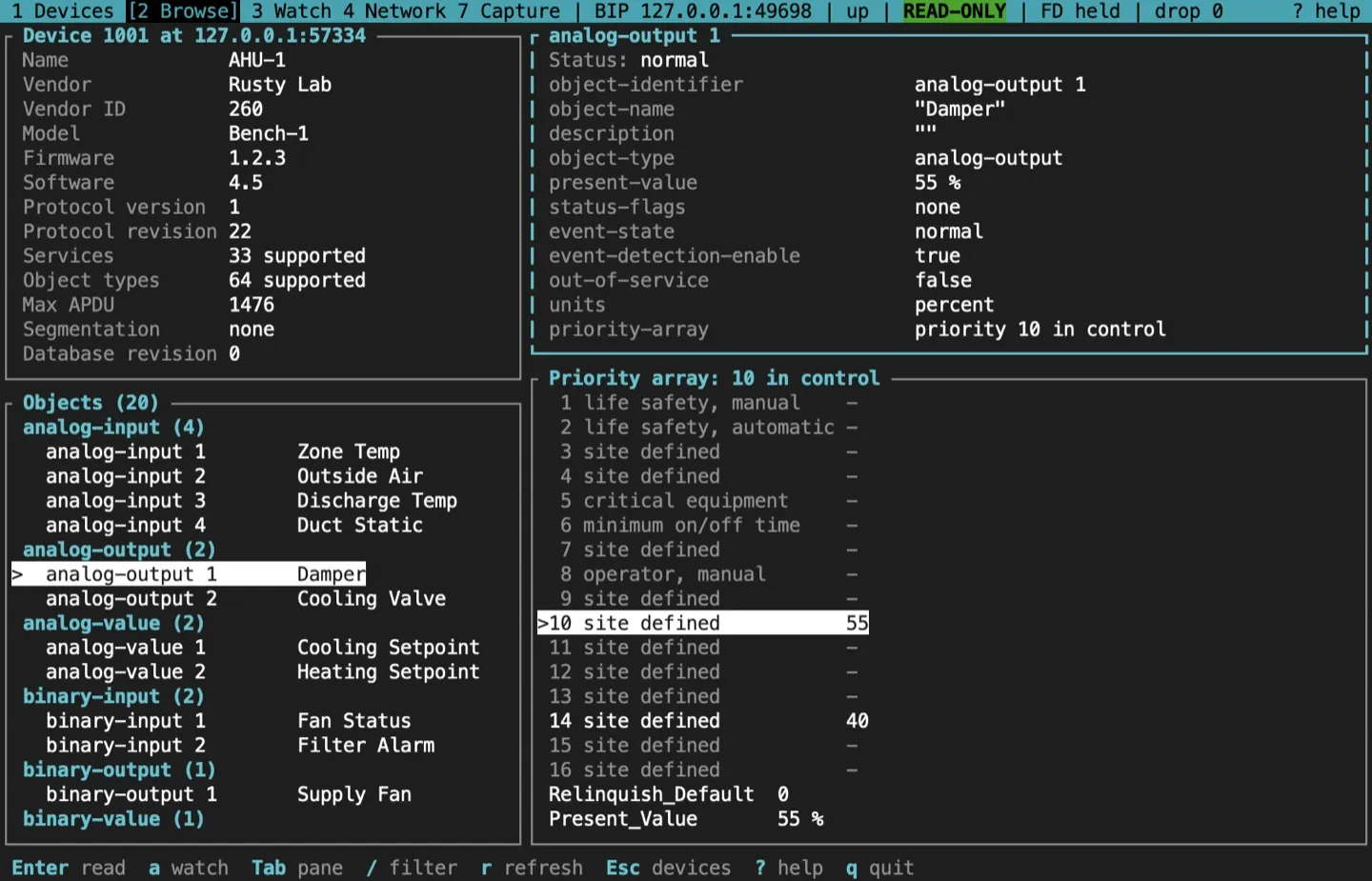
Each slot is labelled with its usual role: 1 and 2 for life safety, 5 for critical equipment, 6 for minimum on and off times, 8 for manual operator, and the others site defined. The highest-priority slot that holds a value, the lowest number, drives Present_Value; when every slot is empty, Relinquish_Default does (Clause 19.2). In this example a value at priority 14 sits under the one at 10 and takes over when 10 is relinquished.
Trend Log and Schedule objects
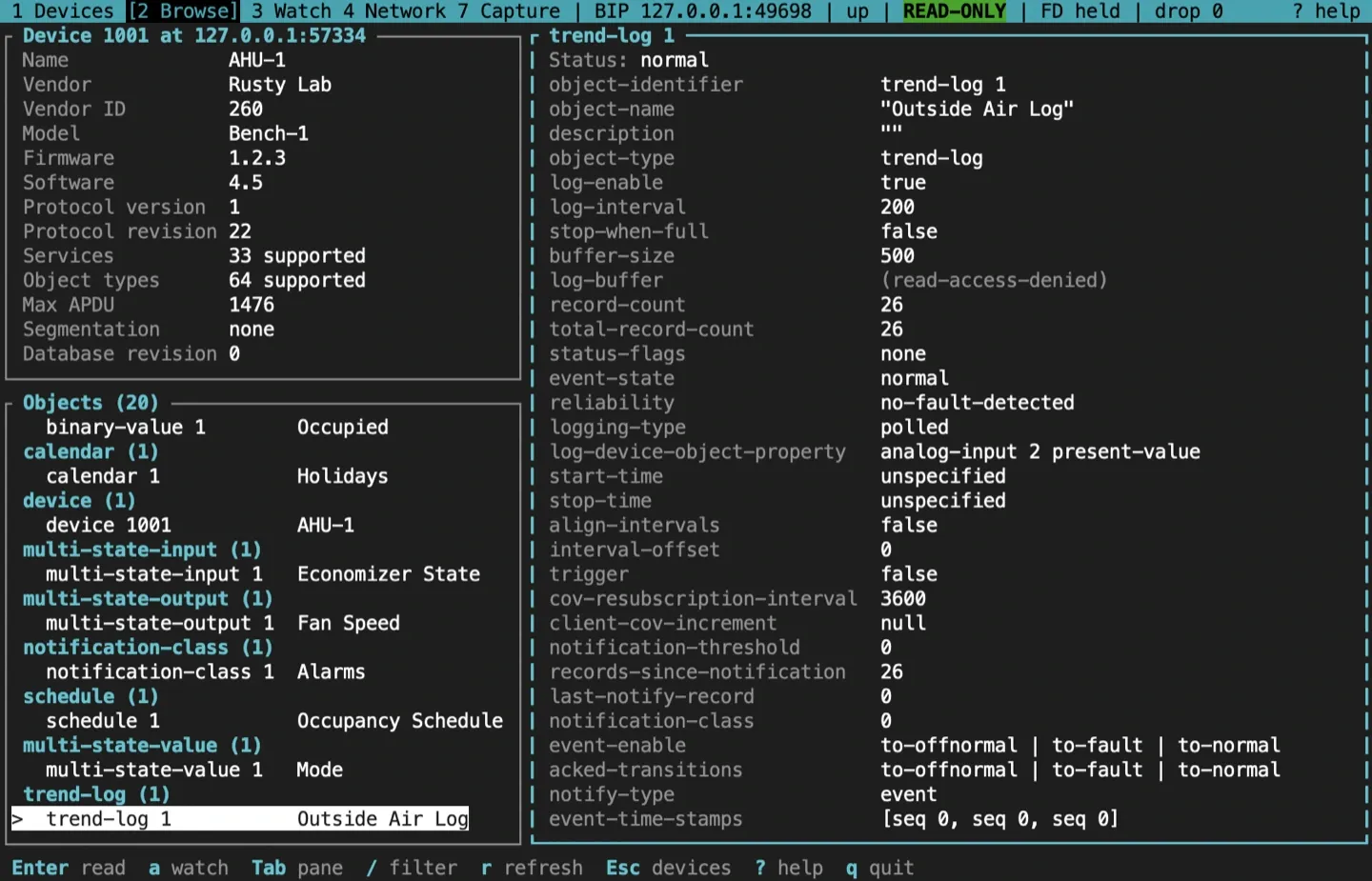
Section titled “Trend Log and Schedule objects”A Trend Log shows its logging properties: Log_Enable, Log_Interval, Buffer_Size, Record_Count, Total_Record_Count, Stop_When_Full, the logged property and the start and stop times.
A Schedule shows Present_Value, Schedule_Default, Weekly_Schedule, Exception_Schedule, Effective_Period, the list of properties it writes and Priority_For_Writing.
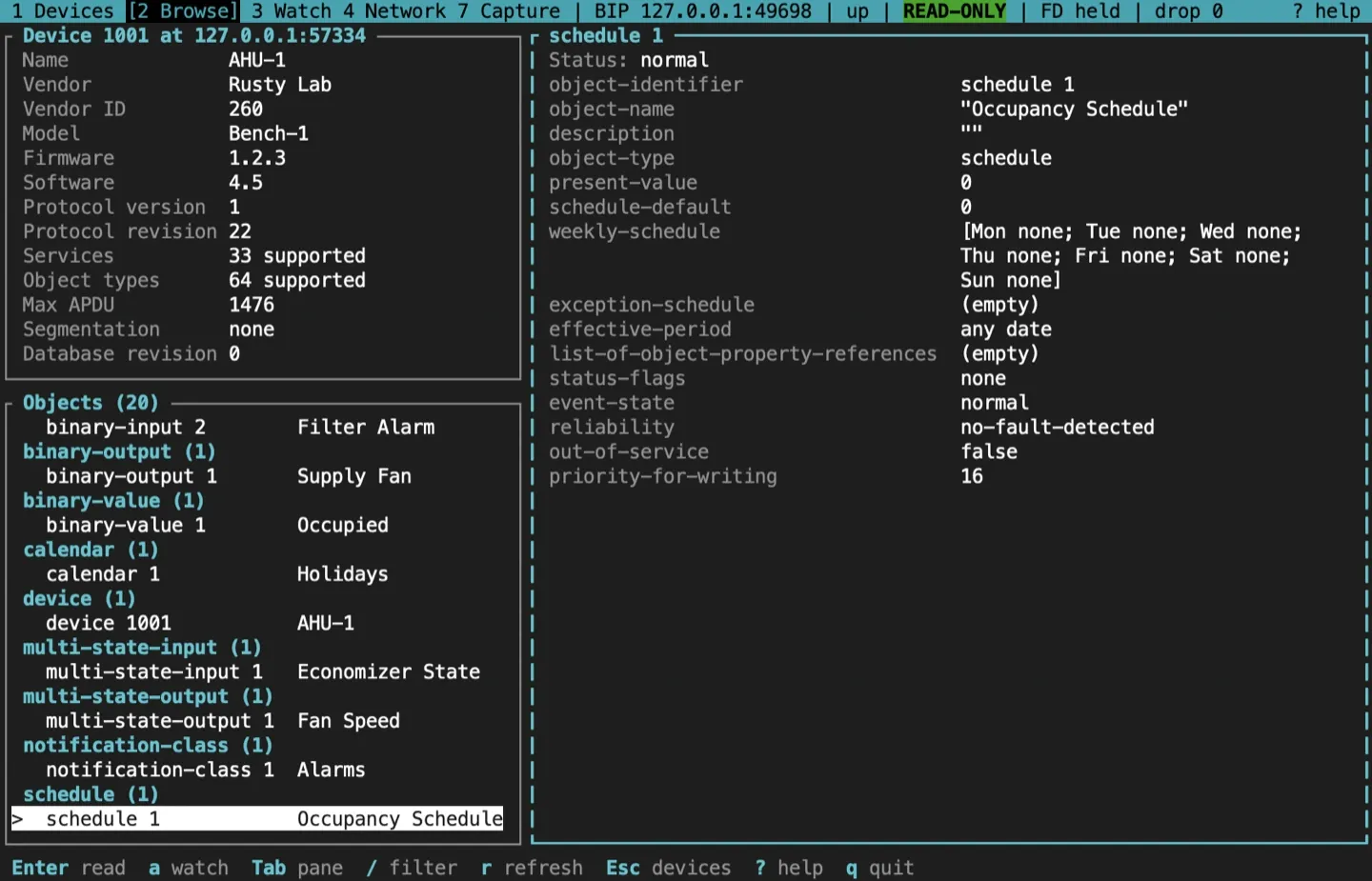
The browser shows these as properties; it has no log-buffer table or weekly calendar view. Constructed values, such as a Weekly_Schedule, a Recipient_List or a property reference, are decoded; a value that doesn’t decode is shown as its raw encoded form. To read a trend log’s records, use the one-shot bacnet read-range command.
Filter the objects
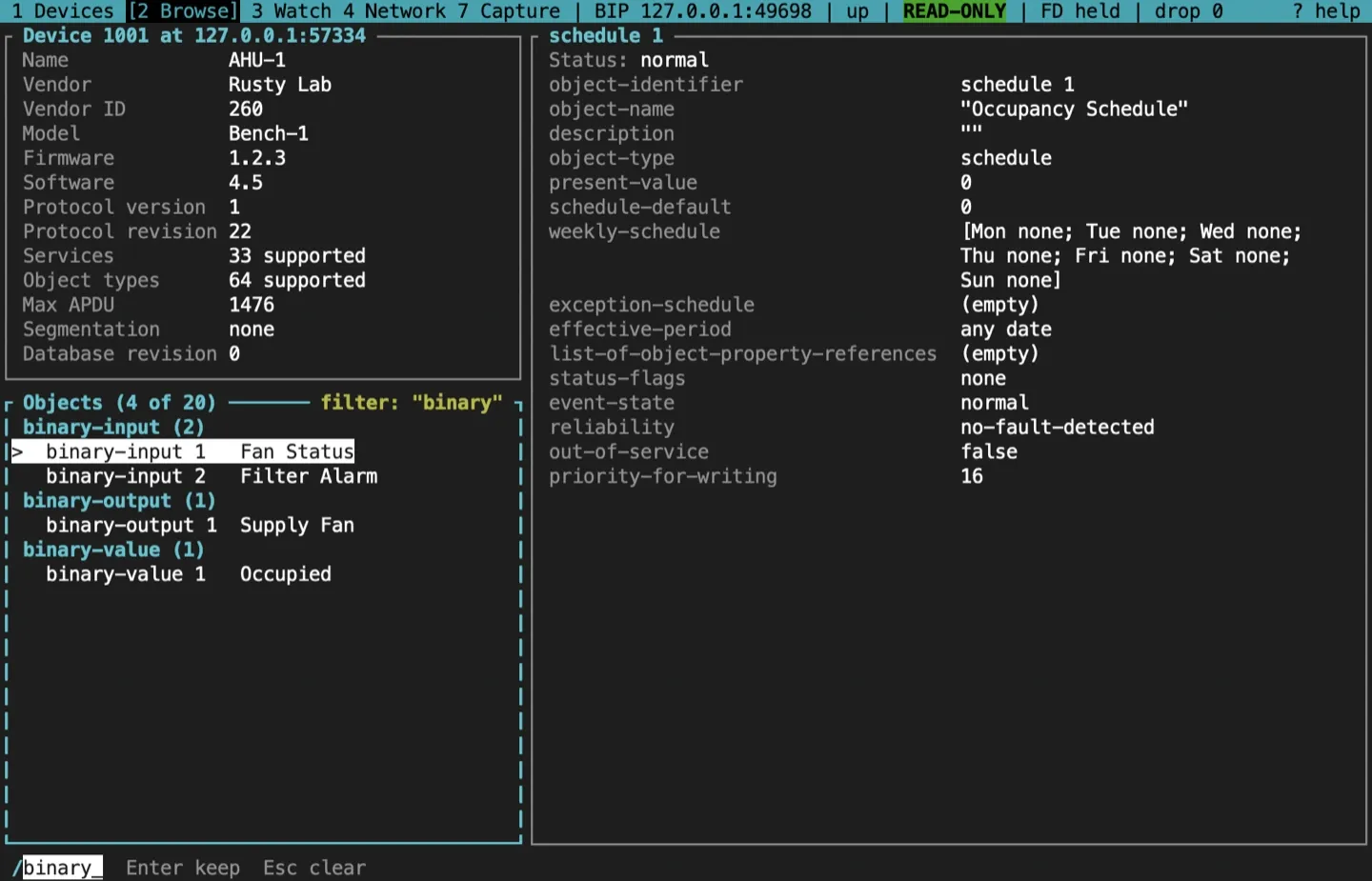
Section titled “Filter the objects”/ filters the object list as you type: by type, such as binary, by instance, or by a name already read (it reads none). The title shows how many objects match. Enter keeps the filter and Esc clears it.
From the browser
Section titled “From the browser”awatches the open object’s Present_Value; see Watch points.wandnwrite and relinquish, inside an armed write session; see Write safely.
Sources and release scope
Section titled “Sources and release scope”These pages describe v0.15.0. Source review is not a claim of hardware qualification.
Device browser reference · Browser source · Browser view.
CONTINUEWrite safelyArm a time-boxed session, preview each write, and revert from the ledger.Release v0.15.0 ·Build and integrate. Pre-1.0 APIs; partial conformance.Support & limitations